Welcome to Storylines, an app for reading and writing interactive-fiction! In this guide we’ll walk through explaining different parts of the application. Feel free to jump around by using the contents on the side.
Download and install
You can find the latest public version of Storylines in the public builds folder.
Windows Install
Unzip the download and open the containing folder so that the .exe file is accessible. Double-click it to run.
If you see a “Windows protected your PC” popup, click “More Info” and then press the “Run Anyway” button.
MacOS Install
Once the .zip is downloaded, MacOS requires a few more steps to run the program.
Unzip the download so you have the .app file accessible.
Right click on the .app file, while holding the alt key, and select Copy “Storylines” as Pathname.
Open Terminal. You can do this by pressing Command+Space and typing in “Terminal”, or you can right click on any folder and select “New Terminal at Folder”.
In Terminal, type chmod -R +x, then paste the pathname to the .app you copied earlier. Press Enter to execute the command.
If you see “App could not be opened”, open System Settings, select Privacy & Security, scroll down to the bottom, and choose “Open Anyway”.
Story capsule: a story’s capsule refers to how it is visualized beside other stories. Story capsules are typically shown in a grid. For capsules, we recommend using an image of aspect ratio 5:7 of 800×1120 pixels.
Story preview: a story’s preview is displayed after a user clicks a story’s capsule. Story previews can be customized to take up the whole screen, but primarily consist of a centered main image. For a preview’s main image, we recommend using an image of aspect ratio 9:16 of 800×1422 pixels.
Node: a node is a container of entries within a story’s content. When a node is reached while playing a story it activates each of its entries, from top to bottom. A node has an input pin on its left side which indicates the entries that lead to this node.
Entry: an entry is a section of work in a node. Some entries have output pins on their right side which can be used to lead to the next node.
Pin: a pin is either an input pin on the left side of a node, or an output pin on the right side of a node’s entry. Pins are used to connect transitions between entries and nodes.
Transition: a transition is a visualized connection from a node entry’s output pin to a node’s input pin.
Portal: a portal is used in the same places you can find a pin. Portals provide a few features to fix shortcomings that pins have in larger stories. Input portals have a color shown in their display. This color is also shown on output pins and output portals that connect to an input portal.
Variable: a variable is a named value that is stored for later use. For example we might store a player’s name so that we can call them by their name later.
Variable name: the variable name is a term you choose, for example “PlayerName”, that can be used to refer to a variable.
Variable value: the variable value is the value stored for a variable, such as the player’s name, “Bob”.
App Navigation
The key panels to be familiar with are Published Stories, Your Stories, and Your Profile.
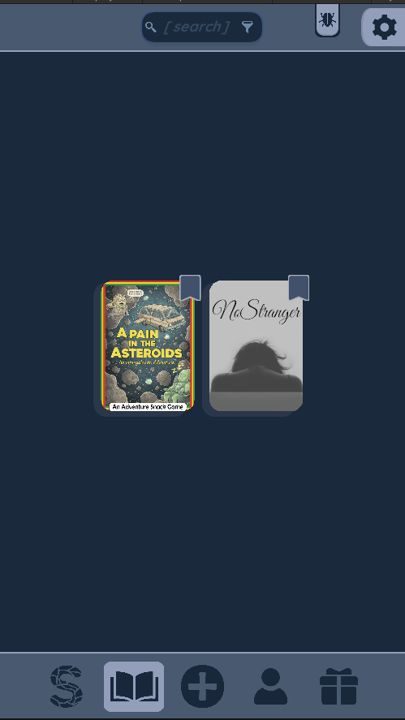
Published Stories: the Published Stories tab can be reached by clicking on the open book from the main menu. This panel displays all stories published, including your own. By clicking one of the story capsules, you can open a story’s preview to learn more about it and read it.
Your Stories: the Your Stories tab can be reached by clicking on the plus button from the main menu. This panel displays all stories that you have created, including ones you have published. By clicking one of the story capsules, you can edit the story’s contents, and publish stories to be seen by other users. You can also select the Create New capsule (bright blue with a white plus symbol) to create a new story.
Your Profile: the Your Profile tab can be reached by clicking on the profile button from the main menu. This panel displays information you wish to share with users who discover your published stories. You can include a profile picture and a short paragraph.
Create a new story
From the main menu, select the plus button on the bottom of the screen.
Select the story capsule which displays a white plus symbol and the text “Create Story”.
Enter in information for your story’s preview, then scroll down. For some screen sizes, scrolling will not be necessary.
Select “Confirm”.
Select the “Content” button.
Double-click on the screen to create a new node.
Entry types
Open a node and you can add an entry from the node menu. The icon beside each name below is the icon you’ll see in that menu. Entries in a node run from top to bottom.
Text
A text entry is a line the player reads. It runs from top to bottom along with the rest of the node.
If you want to include something you saved earlier, drop the variable in with {VariableName}. So {NAME} becomes whatever was saved under NAME.
Text stays on the inline layer, unless a Style entry has moved the content that comes after it.
Response
A response entry is a choice. The player taps one, and that choice’s pin leads to the next node.
Each response has its own output pin, so you can drag it to the node that should follow that choice.
Play waits here until the player takes one of the responses.
Image
An image entry is a picture. It can sit in the scrolling column with the text, or on a layer behind or in front of it.
Inline is the default, so the picture scrolls with the prose.
Underlay paints behind the column, and overlay paints on top. Center backdrop is the 9:16 scene, and filler background covers the extra width when the screen is wider than that.
Input
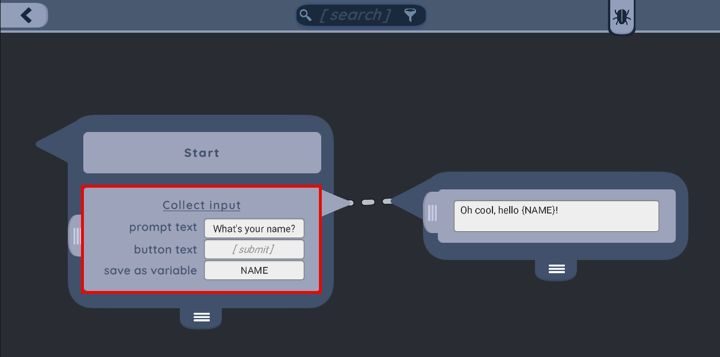
The input entry includes options for you to specify the following values:
prompt text: how the player will be asked to provide input.
button text: text on the submission button.
save as variable: the variable name in which to save the input value.
Once saved as a variable, the value provided by the user can be injected into text as shown below using the format {variable-name}. Here is the resulting story:
Store value
The store value entry saves a value as a variable.
Value or variable is what you want to store. That can be a literal, such as east, or the name of a variable you already have.
Save as variable is the name that will hold it.
Requirement
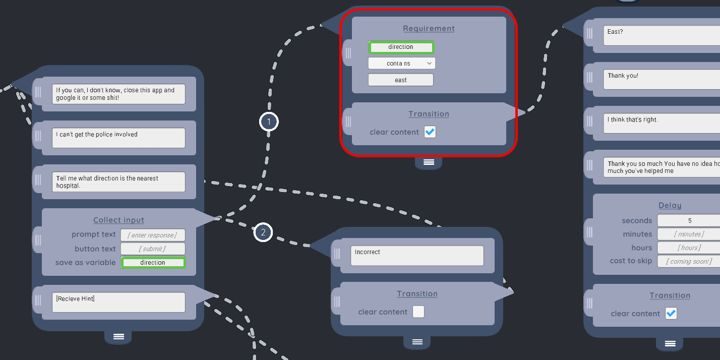
A requirement entry should be placed first in a node. It determines if a transition can be taken to that node. This entry can be used alongside an input entry to test a player’s input. In the below example we collect input and save it to the value “direction” (shown green-outlined on the left). This input entry leads to two different nodes using transitions marked 1 and 2. The 1 transition will be attempted first. It leads to the red-outlined node that contains a requirement entry. The requirement entry checks if the saved value “direction” (shown green-outlined on the right) contains the text “east”. If so, then the red-outlined node will be entered from transition 1. If no, then transition 2 will be taken.
You can also check equal to, greater than, less than, greater or equal, and less or equal. Contains is the one to use when you only need the typed answer to include a word, the way direction contains east does above.
Transition
A transition entry jumps to another node without waiting for a tap. The pin on this entry is the line you drag.
Clear content is on by default, and it wipes the text column before the next node. Backdrops, looping music, and particles stay if their duration says so.
If several transitions leave the same node, they’re tried in order. The first one whose destination lets the player in is the one that runs.
Random number
A random number entry rolls a number and stores it, so a later requirement can branch on what came up.
Set the range, then save the roll under a variable name.
A requirement after that can test the variable, for example with greater than or less than.
Delay
A delay entry pauses before the next entry in the node.
You set how long to wait, and the rest of the node continues once that time is up.
Spacer
A spacer entry is empty vertical space in the inline column.
It’s handy when two lines or pictures need a little air between them, and a blank text entry would still show a box.
Style
A style entry changes how the text after it looks. That includes the font, the color, the alignment, and the text box.
It keeps applying until another Style entry replaces it.
Nameplates and text backgrounds live on the style, rather than as their own entry.
Sfx
An sfx entry plays a sound.
A one-shot plays and finishes. A looping track keeps going until a later sound replaces it, or until its duration runs out.
Vfx
A vfx entry plays a particle effect over the scene, like rain or dust.
Until overridden keeps the effect up until another Vfx entry. Until next response stops it when the player takes a choice.
Layers
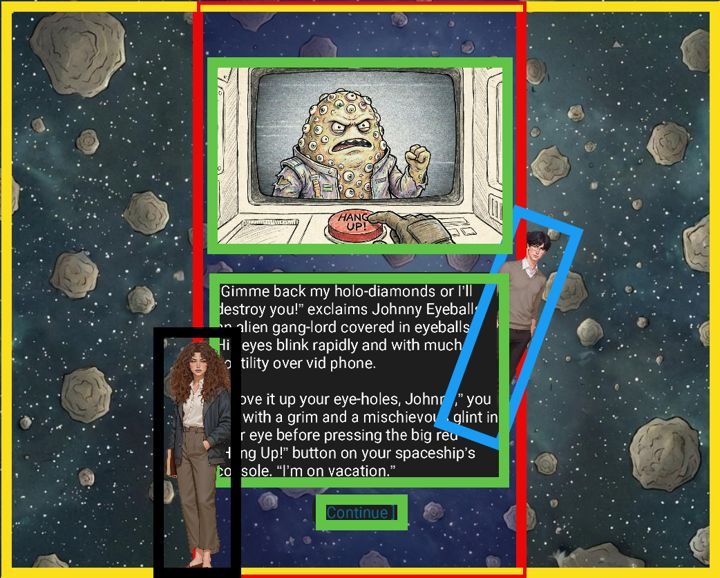
Layers are used to determine the order we render content to the player. Content on lower layers gets covered up by content on higher layers. Below is an example with content on each layer to demonstrate their order.
1. Filler Background - Yellow
Use: if the screen has a wider aspect ratio than 9:16, this layer can provide full coverage.
This is the “lowest” layer, rendered beneath anything else.
In this example, an asteroid field extends to the edge of the screen.
2. Center Backdrop - Red
Use: centers a 9:16 image on-screen. On most mobile devices, this will extend to the edge of the screen, completely covering the filler background.
In this example, a blue transparent rectangle extends to fill the backdrop.
3. Underlay - Blue
Use: images that you want to render behind inline content.
In this example, a man image is shown with his torso above the background and backdrop but with his legs hidden below the inline text box.
4. Inline - Green
Use: text and images of long-form content. This layer provides an easy way to keep text centered and has the added benefit of being scrollable if the content extends beyond the screen height. This is the only layer affected by scrolling. This is the default layer.
In this example, an image, text, and response option are all placed as inline content.
5. Overlay - Black
Use: images that you want to render above inline content.
This is the “highest” layer, rendered atop anything else.
In this example a woman image is shown above all content, partially covering some of the inline text.
Guidelines
When you’re ready, you can publish from the story’s preview, once the capsule and the preview are filled in. The story waits for review, and once it’s approved it shows up on the Published Stories shelf.
A story’s preview backdrop image is aspect ratio 9:16 to match a mobile phone’s portrait dimensions. The recommended pixel dimensions for this asset are 800×1422, though 1080×1920 might also be acceptable if the image is sufficiently compressed.
A story’s preview capsule image is aspect ratio 5:7. The suggested pixel dimensions are 800×1120.
Report a bug
If you encounter a bug or error while playing Storylines, please report it. You’ll notice a bug window on the bottom of the screen with red text inside. To report a bug, please navigate to the settings panel and select the “report bug or feedback” button. You’ll then be prompted to fill out an email-like form to explain how the bug occurred. Once you’ve entered those details, press “send” to send us the report.
To help out even more, please click the “Open Log File” button that appears beside the bug window. This will open a log file on your computer. Please email it to storylineshq@gmail.com along with any relevant details on how the bug occurred.
When the screen resolution is very wide, clicking into the text will always move the caret to the far left, rather than to the position closest to the cursor.